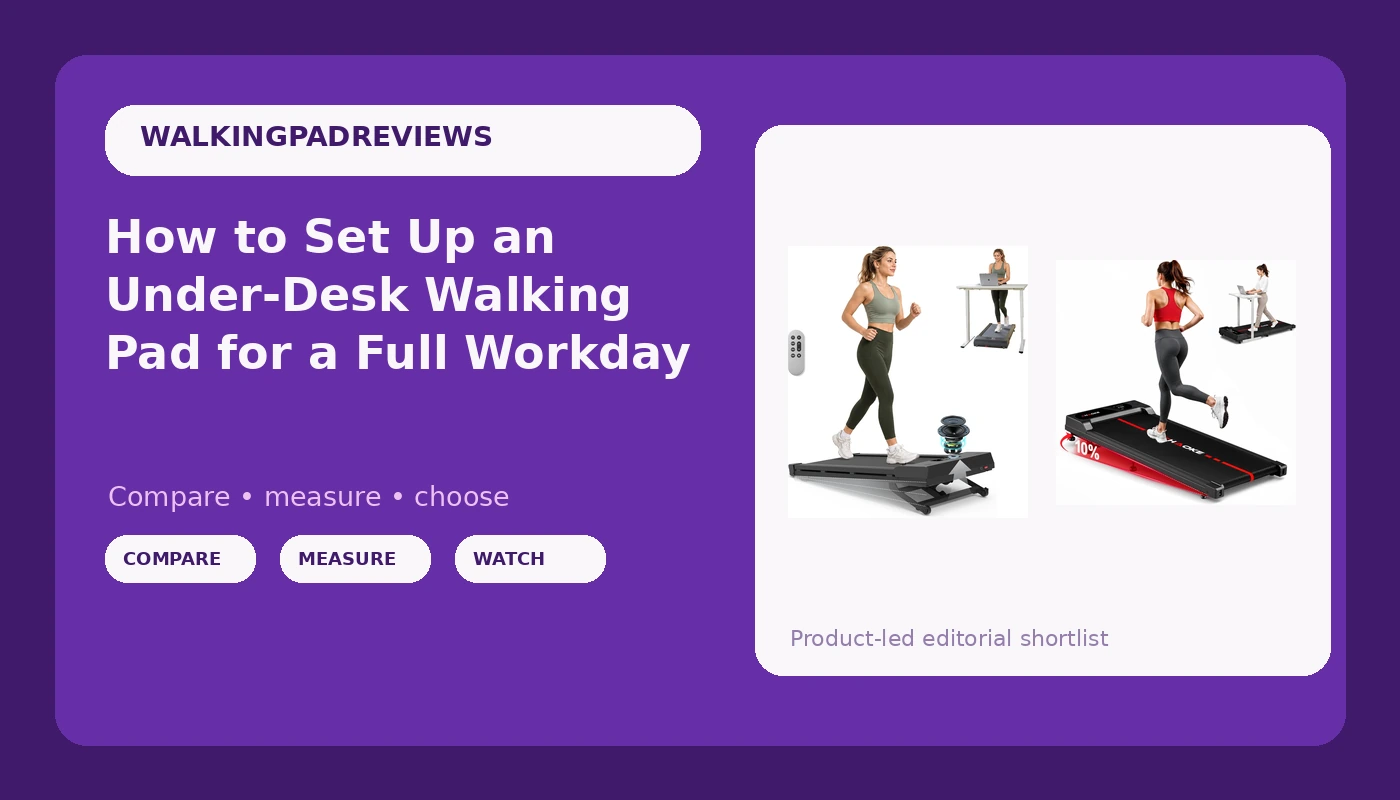
Under desk walking pad setup is not a shopping problem. It is a sequence problem. I have watched people buy a genuinely good pad, shove it under a fixed-height desk, shuffle at 1.2 mph for eleven days, and then slide it under the bed next to the resistance bands. The pad was never the problem. The order of operations was.
The order that works is this: desk height first, floor and step-off zone second, speed calibration third, and only then the app, the incline, and the built-in speaker. Get those first three out of order and no pad survives past week two, no matter what the spec sheet promises.
The two pads I use to walk through this setup are both below, one built around a fast motor and a speaker, one built around a motorized incline. Both are under-desk walking pads. Neither is a treadmill, and nothing here involves running. If you want to run indoors, you are shopping for a different machine with a different safety profile, and that is a different article.
Why you should trust me
I spent nine years as a backend engineer sitting ten hours a day, and at 31 I herniated my L5 disc. My physical therapist handed me the sentence that reorganized my life: move hourly or pay for it later. So I rebuilt a home office in Austin around movement instead of around a chair.
I own three walking pads. I keep a step counter, a tape measure, and a spreadsheet of decibel readings taken at my desk, at ear height, while walking. That last habit exists because manufacturers quote noise at idle, and a pad that is silent while standing still can sound like a small lawnmower at 3 mph. A pad that cannot hold 2 mph at a reasonable noise level is a very expensive footrest.
I review walking pads as medical devices with a marketing problem. I do not review them as treadmills. The category is full of spec sheets written for a gym and realities built for a home office, and the gap between those two things is where buyers get hurt and where pads get abandoned.
What has to be true before the pad arrives
The pad is the second purchase. The first is a desk you can raise. This is not a preference, it is the load-bearing condition of the whole setup. A pad under a fixed-height desk puts your elbows below your ribs and your neck forward, and you will quit.
Beyond the desk, here is what I check before I recommend any pad for daily use:
- Sustained speed. Can it hold a steady 2 mph for 45 minutes without drifting or surging? That is the working speed for typing, and it is the only speed that matters for this article.
- Belt width. Your stride wanders when you are reading email. A narrow belt turns every distracted minute into a near-miss at the edge.
- Deck height. A lower deck is easier to step onto and off of, which matters more than top speed when you are getting on and off forty times a day.
- Remote behavior. The remote is the most used feature on the machine and the least tested by reviewers. It has to work from the position your hand actually rests in, not from directly in front of the console.
- Auto-stop and safety behavior. Whatever the pad does when you step off needs to be tested at 1 mph on day one, not trusted on faith.
- Warranty length. A company that trusts its own motor backs it for years. A twelve-month warranty on a motorized deck tells you what the company expects.
How I picked the two pads in this guide
Most pads at the value end of this category share the same class of motor and a different sticker on the frame. Where quality actually shows up is the frame, the belt, the deck, and the remote. So I looked for pads that separate themselves on those four things rather than on a bigger number in the marketing copy.
Horsepower deserves a note here. Treat the horsepower figure on any of these boxes as a peak rating, not a sustained one. The vocabulary matters: peak versus sustained HP is the difference between a number printed for a listing and a number the motor can hold for an hour. For desk walking you need almost none of it, which is why a modest motor is fine and a wobbly frame is not.
The two pads below are the ones I would put in this setup. One is the value pick with the faster motor and the audio, one is the pick for people who want the deck to change angle under them without stopping.
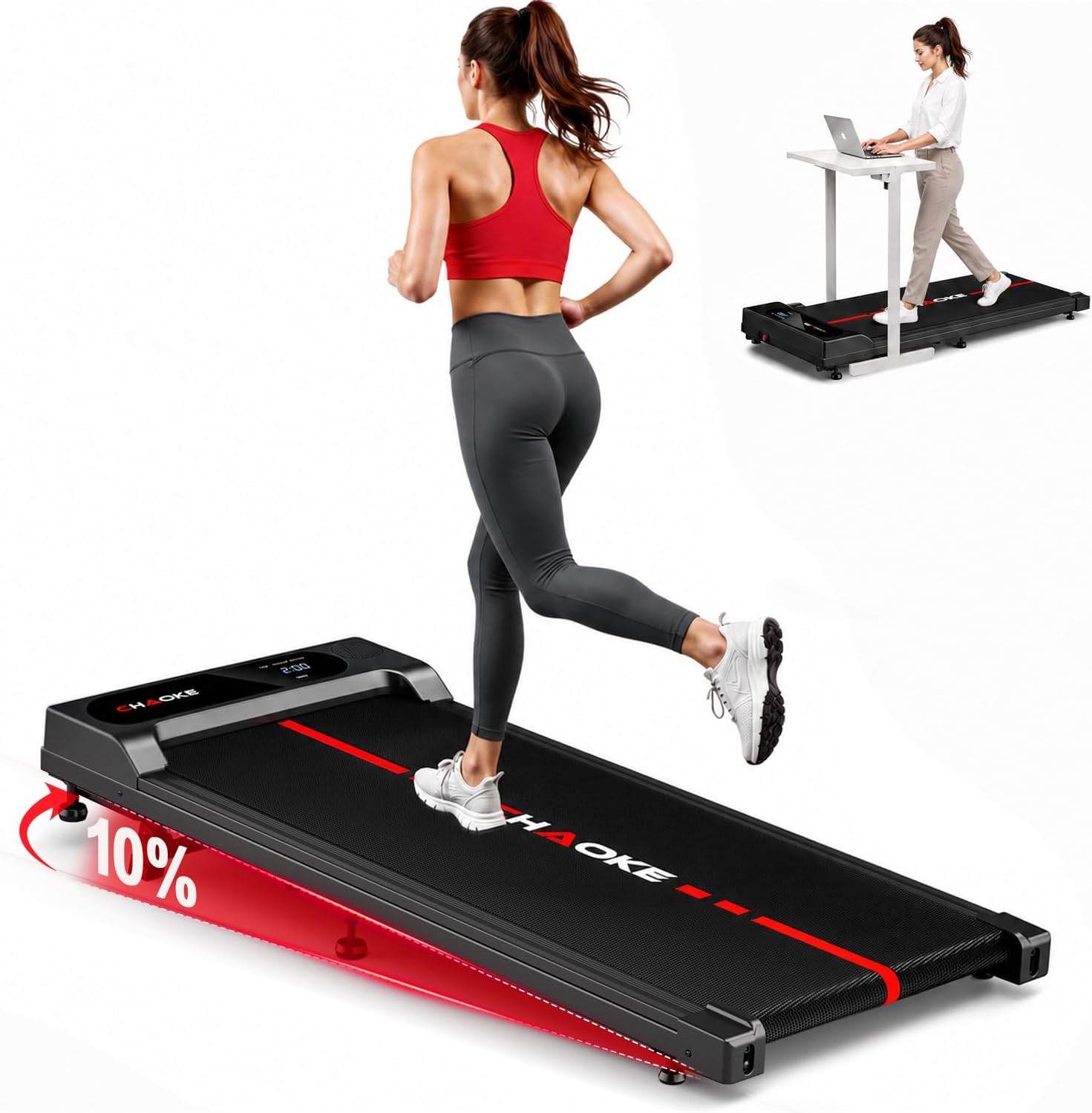
Our pick: Walking Pad Treadmill for Home, Built-in Speaker, 6.2MPH Under Desk Walking Pad with 10% Incline, 2.75HP Portable Walking Pad with APP, 330LBS Capacity, Remote Control, 12 HIIT Programs
 Visit on Amazon →
This is the one I point people to first, because it covers the two things a desk pad actually needs and throws in the two things people think they want. The listing gives you a 2.75HP motor, a 6.2 mph top speed, a 10% incline, a 330 pound capacity, a remote, an app, a built-in speaker, and 12 preset programs.
Read that top speed the way a reviewer should read it, not the way a shopper reads it. At a desk, 6.2 mph is headroom for the motor, not an invitation. Anything past about 3 mph while your laptop is open is out of scope for this category, and I would rather you know that now than learn it with a coffee cup. What the headroom buys you is a belt that does not struggle at 2 mph, which is the whole job.
The 10% incline is a fixed or settable angle rather than a motorized one, so you get the posture change without an extra mechanism moving under your feet. The 330 pound capacity is a stability signal. Heavier rated decks tend to be built with more frame, and frame is what stops the wobble that makes people quit.
The built-in speaker is a genuinely useful feature for a specific reason: you do not want to run audio through the same device you are using for work calls. Keep the pad's speaker for music or a podcast and keep your call audio on your computer. Do not route a meeting through it.
The app is the part to test in the first hour. My pet peeve across this entire category is apps that require an account before you can change speed. If the app wants a login and a firmware update before it lets you bump the belt, use the remote and ignore the app. A remote that works without line of sight is worth more than any dashboard.
The 12 HIIT programs are the marketing layer. A walking pad is not a HIIT machine. If you use them at all, use them at walking speed as a cadence change, not as intervals that push you toward a jog.
Flaws but not dealbreakers: The feature list is longer than a desk pad needs, and every extra feature is one more thing to break. If you never touch the app or the presets, you paid for them anyway.
Anyone who wants one pad that handles a full workday at 2 mph and still has motor left over should start here.
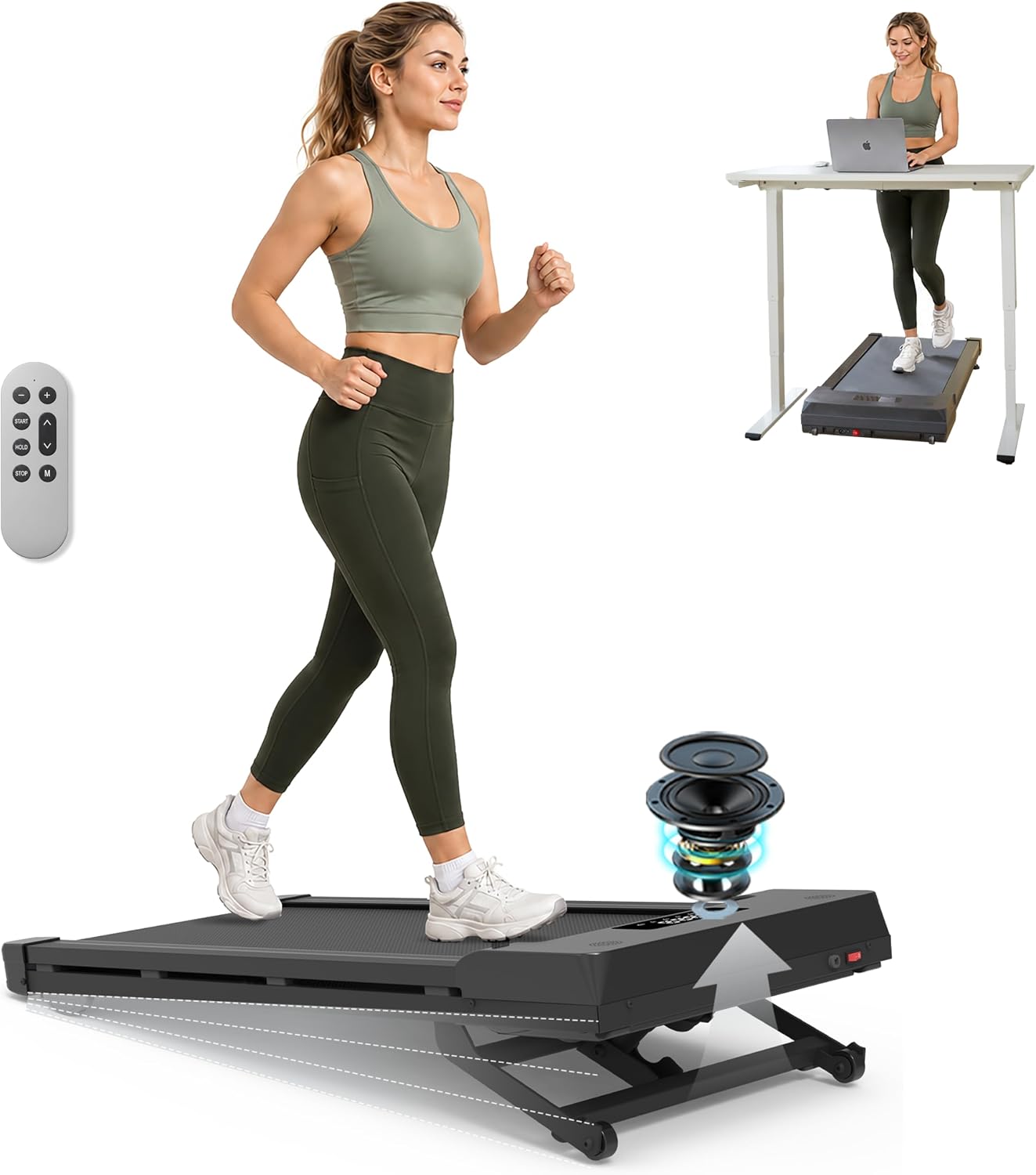
The incline pick: Walking Pad Treadmill, Auto Incline 12%, Under Desk Treadmill, Grey Black
 Visit on Amazon →
Auto incline is the feature that changes how a walking pad feels over a long day. With a 12% motorized incline, the deck changes angle while you keep walking, which shifts load from your calves into your glutes and hamstrings and gives you a way to break up a two-hour block without changing speed or stopping. For anyone who gets bored at a flat 2 mph, this is the upgrade that keeps the pad in use.
It also adds a mechanism, and mechanisms are where warranties earn their keep. An incline motor is one more part under load for hours at a time. Before you buy, read the warranty length and the return window, and then test the incline through its full range at 1 mph on the first day while you are standing next to the machine rather than on it.
Expect the noise profile to change with the angle. Incline moves the belt and the deck relative to each other, and a pad that is quiet flat can be noticeably louder at 12%. If your desk sits in an open-plan house or near a bedroom door, test the incline at your working speed before you build a routine around it.
The grey and black finish is the practical choice for a home office, and it is the version I would put under a desk that already has a monitor, a lamp, and a tangle of cables competing for visual attention.
Flaws but not dealbreakers: Auto incline adds cost and complexity. If you know you will walk flat forever, the simpler pad above does the same job for less.
Anyone who wants the deck to work harder as the day goes on, without touching a setting mid-sentence, should look here.
The setup, step by step
Now the actual work. Do these in order.
Step one: set the desk height before the pad is on the floor. Stand at the desk with no pad underneath and set the surface so your elbows sit near 90 degrees with your hands on the keyboard. Do it standing, because that is the posture you are buying. If you set the desk while seated and then add a pad, you will end up with your wrists bent upward all day.
Step two: clear the step-off zone. You need floor behind you and to one side that is flat, dry, and free of rug lips, power strips, and the edge of a bookshelf. Getting on and off a moving belt is the most dangerous five seconds of the day. That zone is not optional and it is not storage space.
Step three: place the pad level and check the wheels. Set the pad so the deck is level front to back and side to side. Push it with one finger and listen. Wheels that scrape the floor on a smooth surface will scrape every time you move it, and a pad you cannot roll out of the way is a pad that stays out and gets tripped over.
Step four: route the cable out of the walking path. The power cord should run to the wall without crossing where your feet land. If it has to cross, tape it down flat. Cables and moving belts do not mix.
Step five: pair the remote where your hand rests. Not at the console. Stand at your working position, let your arm hang naturally, and test the remote from there. If it only responds when you point it directly at the front of the machine, that is your first caveat and you should decide now whether you can live with it. Mine gets used dozens of times a day, and line-of-sight requirements are the fastest way to make a good pad annoying.
Step six: test the safety behavior at 1 mph. Step on, bring it to 1 mph, and step off. See what happens. Do this while holding the desk edge, before you ever trust the machine at working speed. If the pad has an auto-stop feature, confirm it actually stops and how long it takes. Never assume.
Step seven: calibrate speed in three sessions. Session one is 1.0 mph for 15 minutes. Session two is 1.5 mph for 20 minutes. Session three is 2.0 mph. You are looking for the speed where you can type a full sentence without looking down. For most people that is between 1.8 and 2.2 mph. Above 2.5 mph, typing accuracy falls off and the pad starts to feel like a machine you are managing instead of a floor that moves.
Step eight: fix the desk ergonomics on the move. Monitor top edge at or slightly below eye level. Keyboard close enough that your elbows stay under your shoulders. Cadence rises when you walk, so recheck your wrist angle after ten minutes at speed, not before you start.
Step nine: separate call audio from pad audio. Use the pad's built-in speaker for music and podcasts, and keep your microphone on your computer or a headset. If your microphone picks up the belt, add a mat under the pad before you add a noise gate.
The first two weeks
Do not try to walk all day. The pattern that survives is 20 minutes on, 40 minutes off, repeated through the workday. That gets you the hourly movement your body wants and keeps your focus intact for the parts of the job that need it.
Track two numbers only: total minutes walked and how many days in a row you got on the pad at least once. Not steps, not calories. Steps reward long sessions, and long sessions in week one are how people end up sore and discouraged.
The goal for week two is that you forget you are on it. When you catch yourself reading email at 2 mph and not thinking about your feet, the setup is done. That state is what NEAT actually looks like in an office, and it is worth more than any single workout you would skip anyway.
What goes wrong and how to fix it
Wobble at 2.5 mph. Almost always the floor, not the pad. Move it off the rug, check that all feet are contacting the ground, and check that the pad is not bridging a floor seam.
A remote that needs a clear line of sight. Move the pad forward or back a few inches. Infrared remotes hate being under a desk lip. If it still fails, that is a real limitation and worth weighing before the return window closes.
An app that wants an account. Skip it. Use the remote. If the app is the only way to change a setting you need, that is a design flaw, not a you problem.
Noise that only appears at speed. This is the idle-versus-walking gap. Every manufacturer quotes the quiet number. Test at 2 mph, at ear height, with the room as it will actually be during your calls.
Belt drift to one side. Usually a leveling issue. Recheck the floor and the feet before you touch any adjustment screws.
Soreness in the first week. Reduce speed, not duration. Walking slower for the same 20 minutes is the correct adjustment.
What this all costs
Check current Amazon price on both pads, because listings in this category move constantly and the number I would have quoted last month is not the number today.
The math that matters is not the sticker, it is cost per use. Take whatever the pad costs today, divide by the number of workdays you will actually use it in two years, roughly 480 if you are honest with yourself, and that is your real number. A pad that costs a little more and gets used five days a week beats a cheaper pad that becomes a footrest by November.
Then add the desk. A walking pad is useless without a desk that adjusts, and if you are budgeting, the desk comes first and the pad comes second. I review the pair or not at all, because one without the other is furniture.
The bottom line
Set the desk height, clear the step-off zone, test the safety behavior at 1 mph, and calibrate to the speed where you can still type. That is the whole method, and it takes about an hour.
The pad is the easy part. Pick the value model with the motor headroom and the speaker if you want one machine that does everything, or the auto incline model if you want the deck to change under you across a long day. Either way, the setup is what decides whether you are still walking in March.